Diagram Templates
This section introduces the software's built-in geoscience diagram module. It covers the classification, management, and extension mechanism (JSON/ZIP) of the template library, provides a detailed analysis of the diagram interface layout (menu bar, toolbar, layer list, property panel) and its core operation features (such as data import, layer editing, visual settings, and third-party software integration), and offers a complete workflow guide from selecting a template to exporting the final chart. 🌍
Goals
On the diagram plotting page, we will integrate more foundational geoscience templates, including but not limited to: tectonic setting discrimination diagrams, rock classification diagrams, and basic geothermometer diagrams. Our ultimate goal is to create a comprehensive plotting toolkit for the geosciences, providing maximum convenience for researchers. 🧪
Template classification logic is currently organized by discipline:
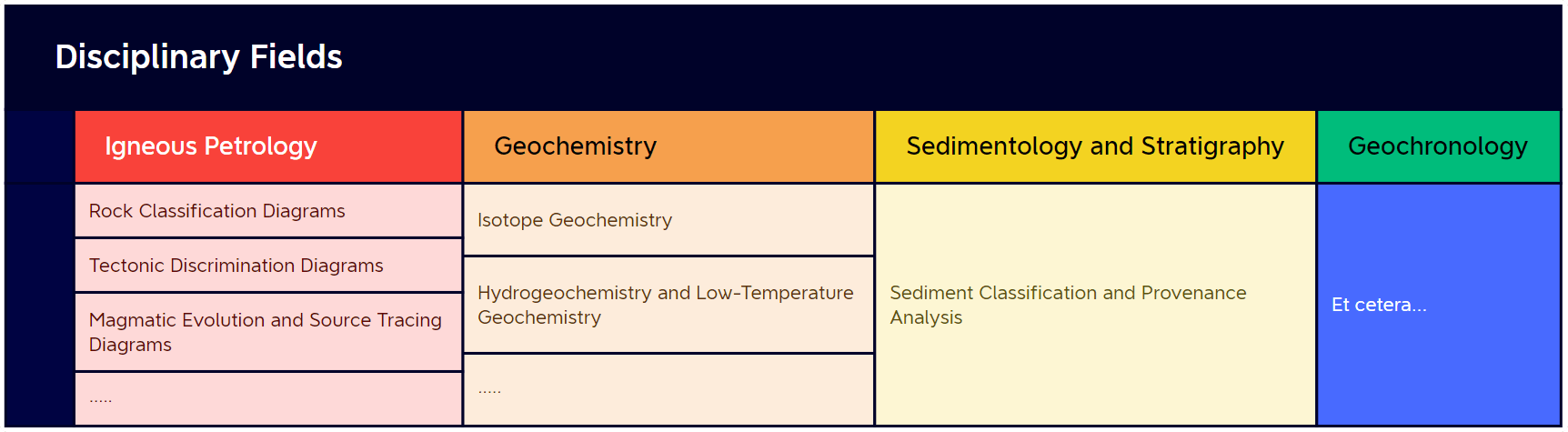
As templates are updated, certain classification structures may change.
We welcome valuable feedback during use to improve the usability and convenience of the software. 🌹
Quick Start
Template Library
We divide the diagram module into three categories: Built-in Cloud Templates, Personal Custom Templates, and Built-in Tool Templates.
Built-in Cloud Templates: Continuously updated and maintained by us. Users do not need to update the software; when connected to the network, they can obtain updated diagram templates, ensuring they always have the most comprehensive and authoritative template resources.
Personal Custom Templates: Suitable for scenarios where the required template is not found in the official library, or when custom templates need to be created for specific research needs. Users can not only create these templates themselves, but also export them for easy sharing with other researchers, promoting academic exchange and dissemination.
In the future, we plan to establish a dedicated diagram template community where users can easily create, upload, share, and download various personal custom templates, further enhancing the system's flexibility and extensibility.
Built-in Tool Templates: Non-standard cloud template diagram tools are separated out individually. Currently includes: REE spider diagram, trace element spider diagram, and Harker diagram.
Interface
By default, the plotting module displays the built-in geoscience template library upon entry. The interface is divided into three main parts:
- Left - Template List: Displays all template hierarchy levels and corresponding templates, including the custom template list.
- Upper Right - Navigation Bar: Updates based on the hierarchy selected in the template list to display content at different levels.
- Lower Right - Template Cards: Displays diagram cards under the current level, including name and preview image.
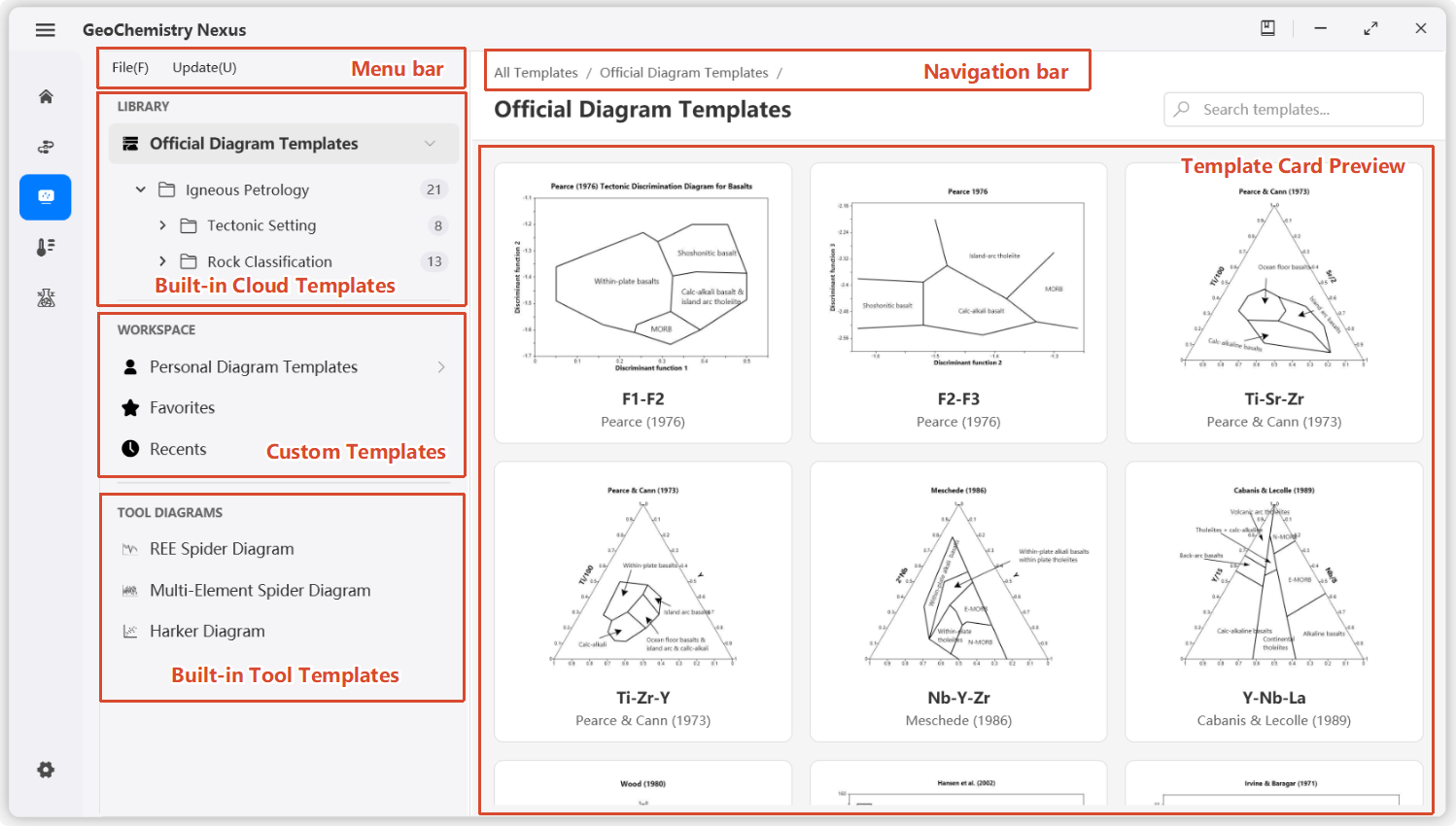
Select and click a template card with the mouse to enter the specific diagram operation interface. Of course, you can also right-click a diagram card to export the corresponding diagram for sharing with other researchers. Or choose to favorite a diagram for quick access next time. Personal custom diagrams can be deleted via right-click.
You can press the ctrl key to quickly delete/favorite diagram cards.
Under local network conditions, users can manually check and update the built-in template list through the menu bar, or enable automatic checking in settings to ensure the latest resources are obtained.
Top Menu Bar
Menu bar functions are divided into two categories:
- File: Mainly used for creating, opening, and importing templates.
- New Template: Used to create custom charts; click this button to open an interactive dialog.
- Open Template: Used to temporarily open a template; supports
jsonfiles andzipresource packages. - Import Template: Used to import external template packages (
zip) into the local custom template list.
- Template: Mainly used for built-in template updates. Check Built-in Cloud Template Updates: Used to obtain the latest template list and updates.
You can also directly drag diagram template files to the designated location to import diagram templates.
Diagram Operation Interface
Interface
The diagram interface is divided into five main parts:
- Toolbar: Includes shortcut buttons and three function tabs: Plot, Data, and Edit.
- Layer List (Objects): List of drawing elements on the template. Click an element to modify its properties.
- Plot Canvas: Central area for viewing charts, importing data, visual settings, and viewing template documentation.
- Status Bar: Displays basic plotting information, including current chart language and coordinate information.
- Property Panel: Displays properties of the selected drawing element (such as color, size) to achieve the desired visual effect.
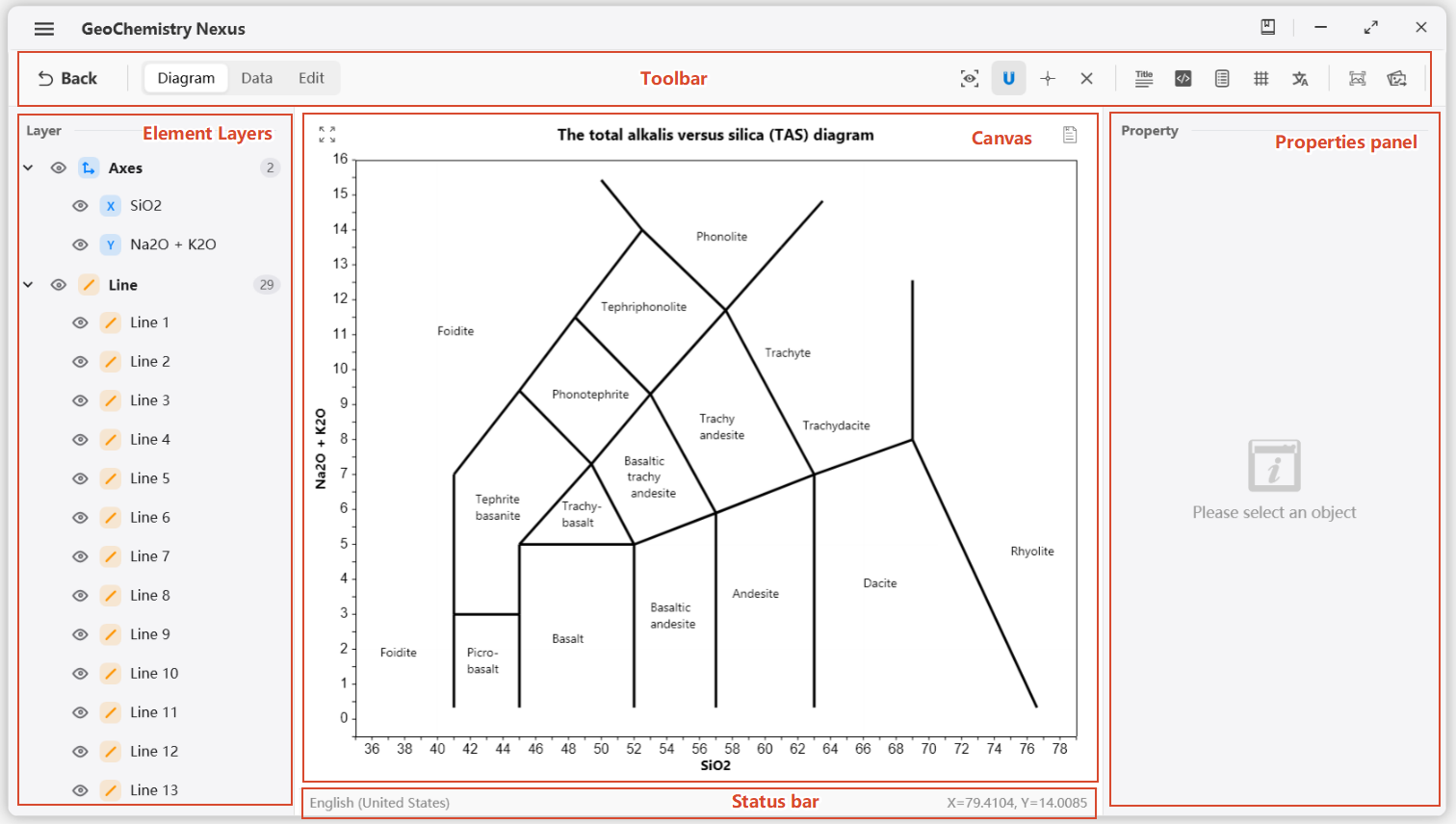
Diagram Toolbar
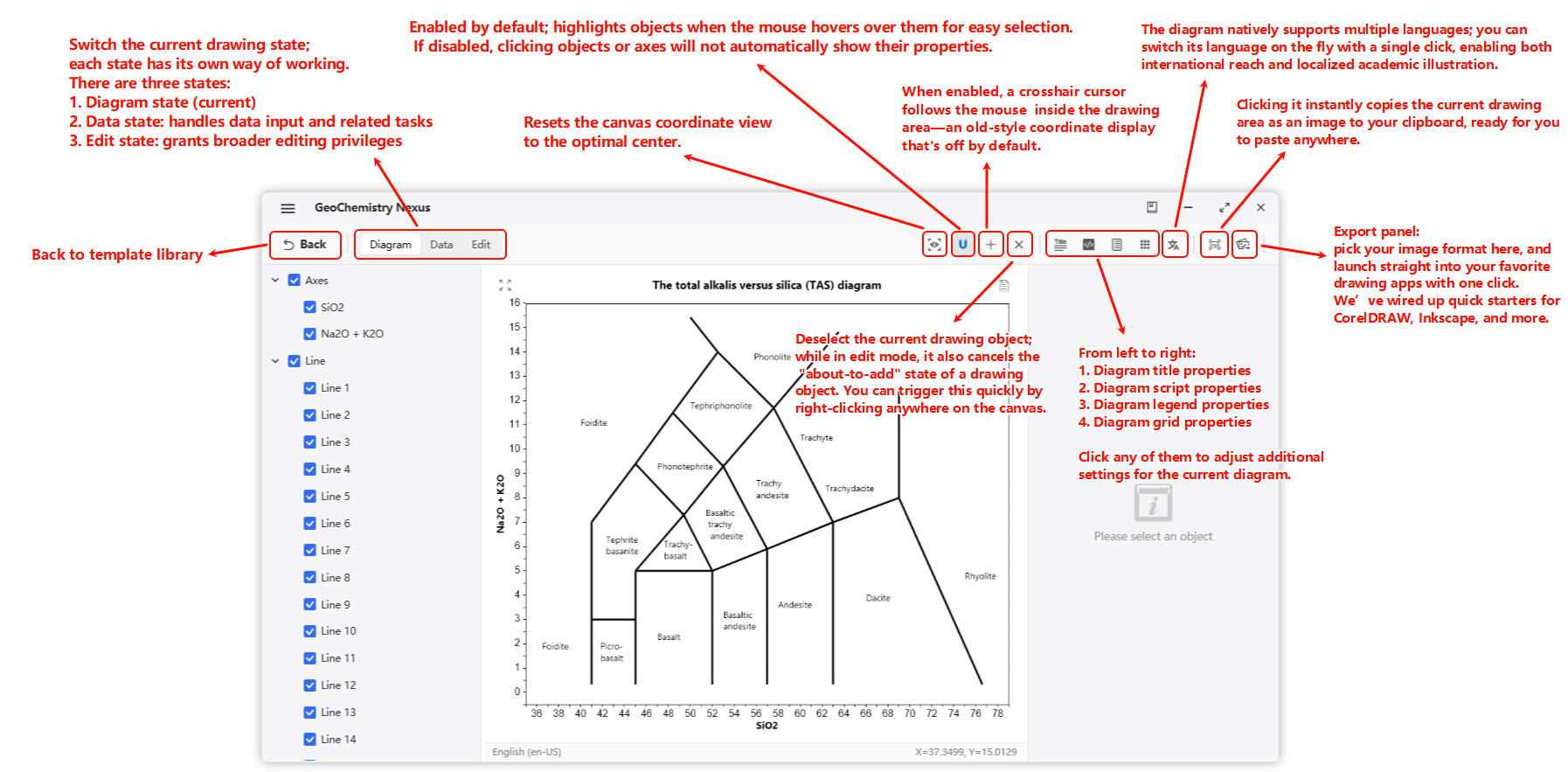
The toolbar consists of a series of shortcut buttons. Including but not limited to:
- Return to diagram template library
- Switch diagram state (diagram mode, data mode, edit mode)
- Various diagram property panels and operation tools, etc.
See the figure below for detailed functions.
Layer List
Drawing elements are divided into 7 categories:
- Line: Defines basic map boundaries or line segments.
- Text: Labels and annotations.
- Polygon: Closed shapes within the chart.
- Arrow: Directional drawing objects.
- Function: Allows users to input custom mathematical functions and domains.
- Axes: Chart coordinate axes.
- Data Point: Elements representing imported data.
Default render order (top to bottom): Text > Arrow > Point > Function > Line > Polygon > Axes.
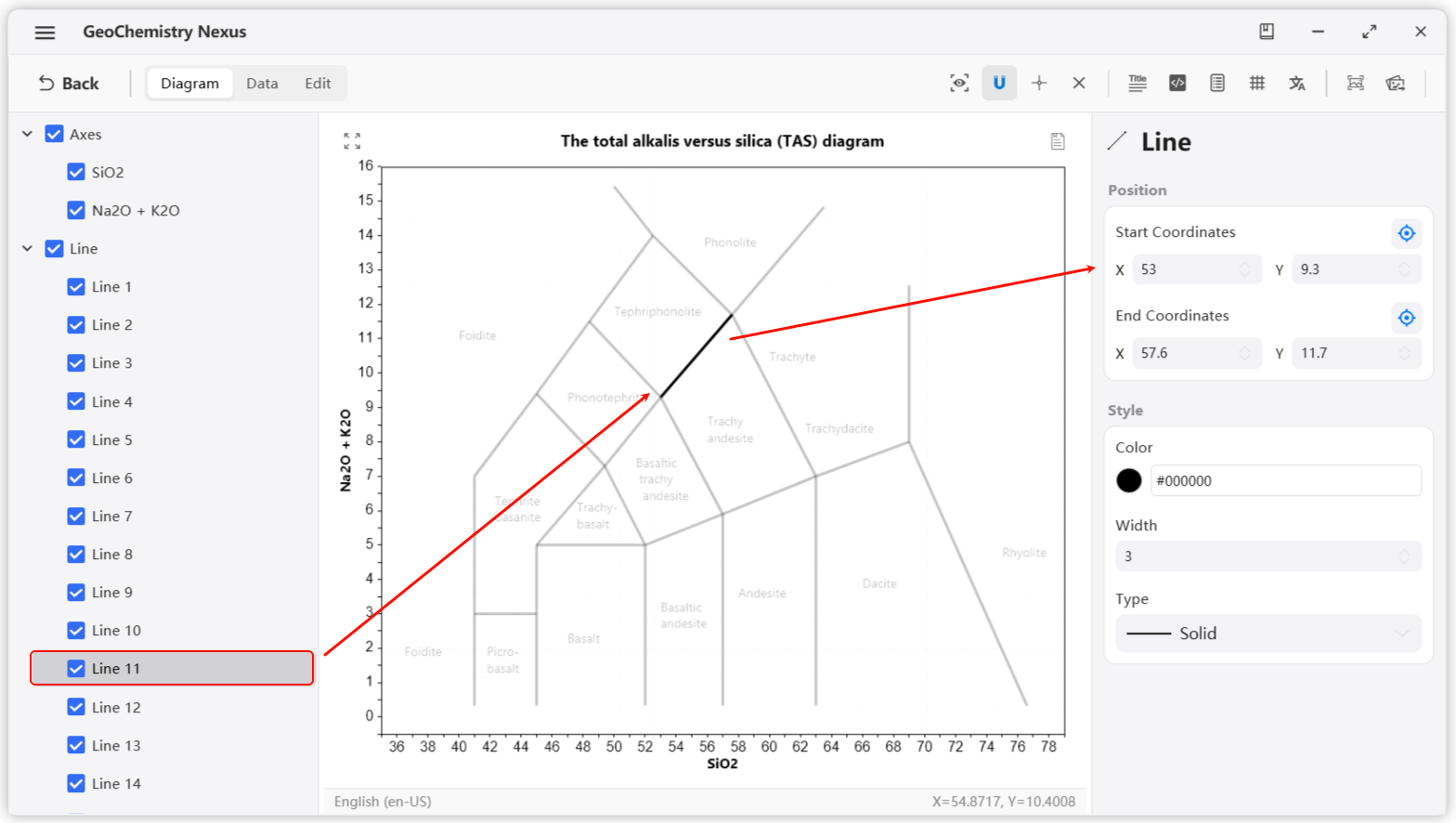
When you select an element in the layer panel, it will be highlighted on the canvas while other elements become semi-transparent to reduce distraction. The property panel will then display the relevant properties of that element. 🔍
Modify these properties to achieve your desired visual style.
To deselect all elements, simply right-click anywhere on the canvas or use the Deselect button on the toolbar.
Property Panel & Chart Guide
Diagram Usage Example
Example
-
Select a template from the Template Library to enter the plotting page. For example: select the TAS diagram.
-
When we need to input data, switch from diagram mode to data mode.
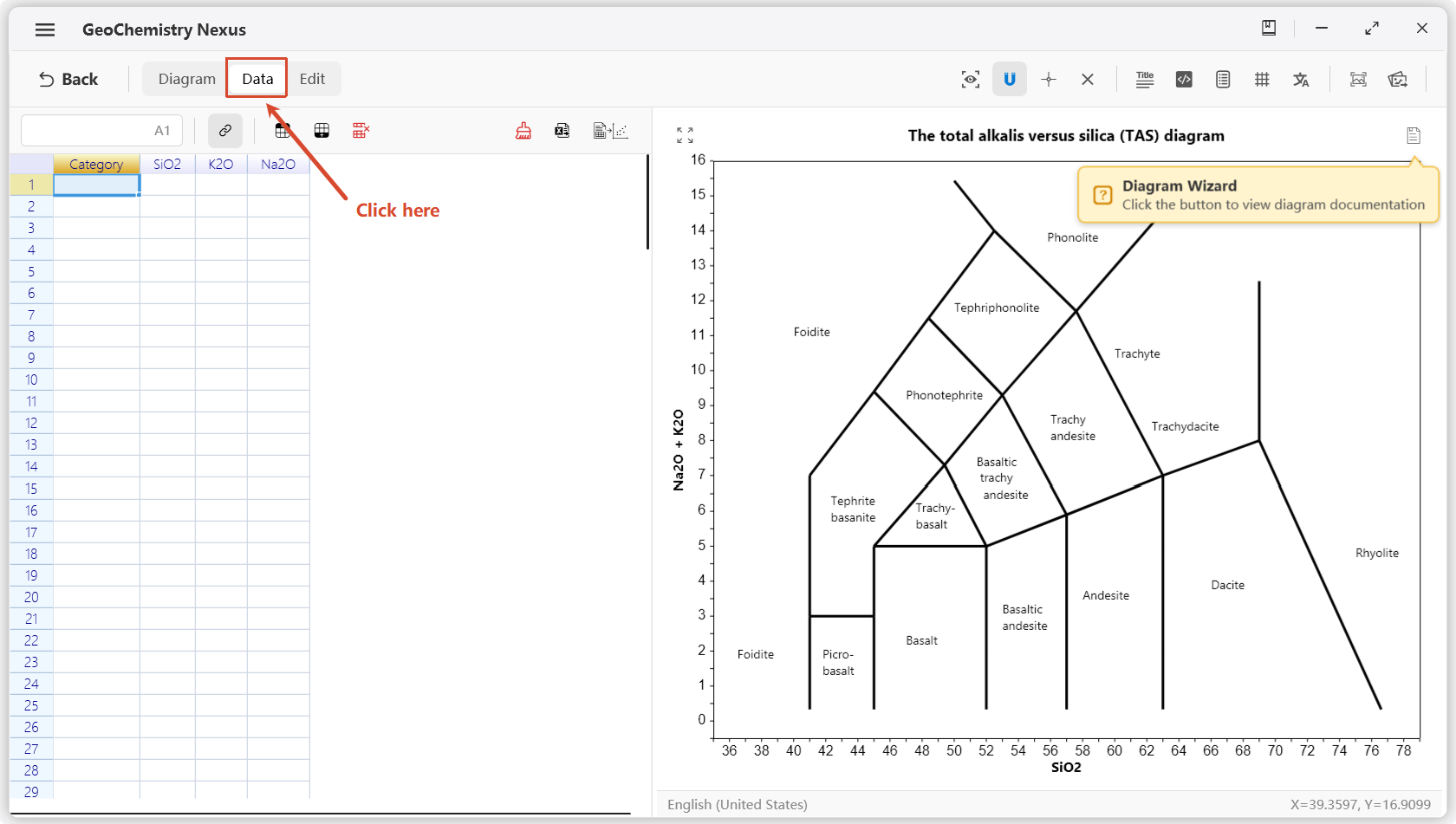
For the TAS diagram, four columns of data are required:
Category,SiO2,K2O, andNa2O. The unit iswt.%. TheCategoryheader column is used to group data and generate the legend. Of course, if you are unsure what data to input, what units to use, or how to use the diagram, you can click the diagram help button in the upper right corner of the diagram area to view the documentation for that diagram.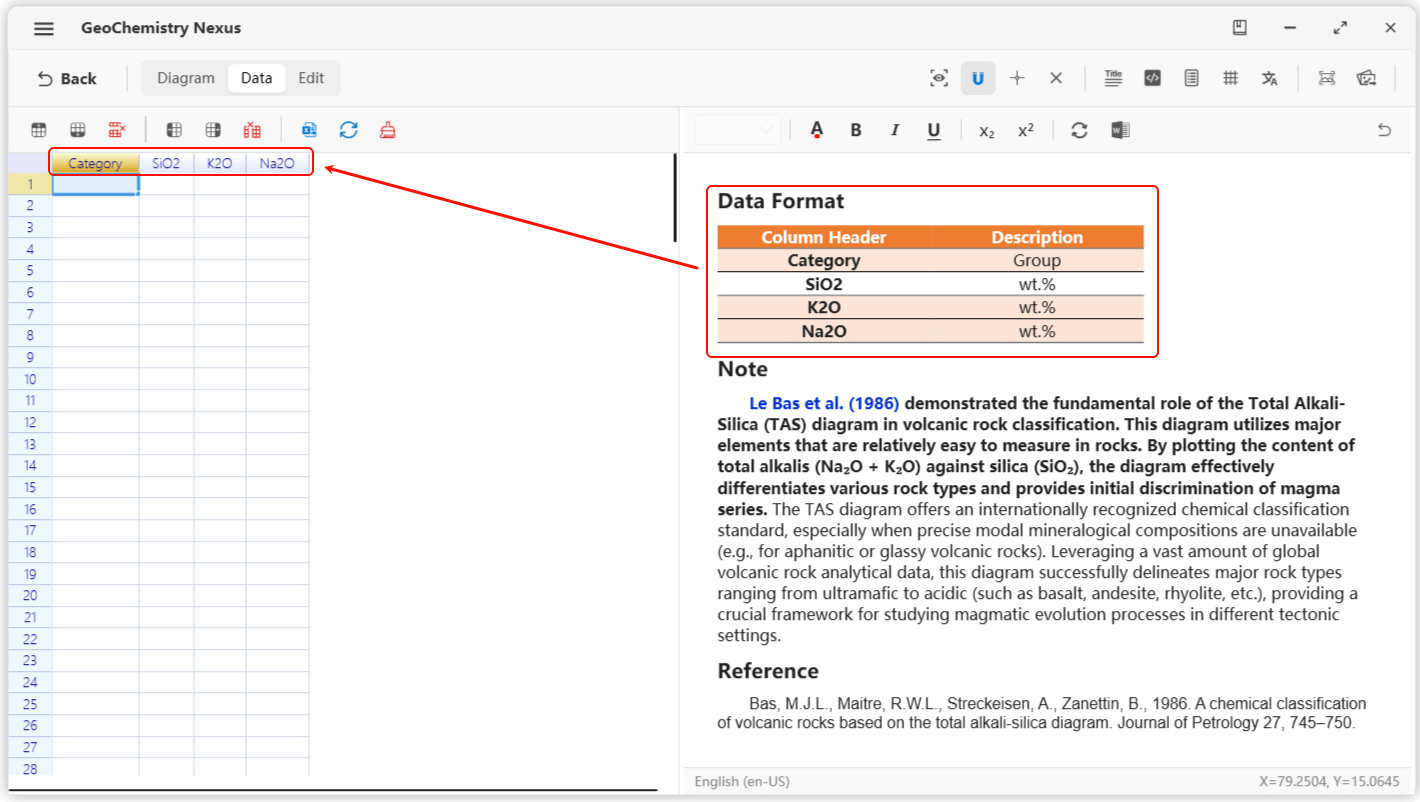
-
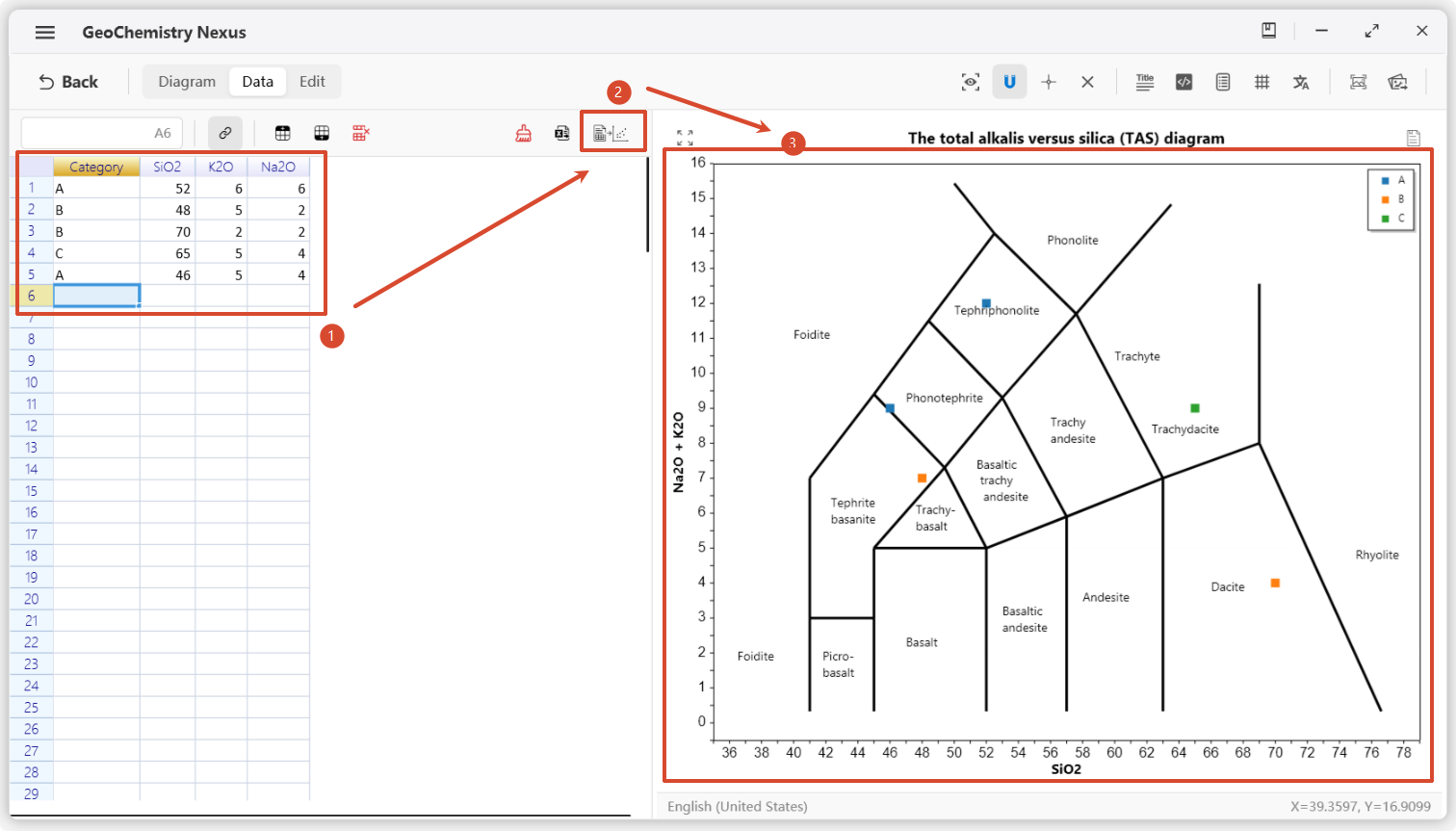
After understanding the requirements, input your data and click the plot button in the upper right corner of the data panel to draw data points. If there is a problem with the data input, simply re-click plot after modifying the data.
-
Export diagram. We provide a quick copy diagram plot result to clipboard function button. There is also a formal export function. In the formal export panel, we support exporting image formats as
jpg,png,bmp, andsvg. For scientific plotting requiring vector graphics, we recommend using thesvgformat. We also support directly linking results to third-party plotting software, without the intermediate step of export then import. Built-in recommended third-party software: CoreIDRAW, Inkscape, Adobe llustrator. We recommend using Inkscape for linked post-processing for better scientific figure editing. Of course, we also support customizing other third-party plotting software, provided the software supports thesvgvector format. Researchers only need to specify the plotting software program path in settings.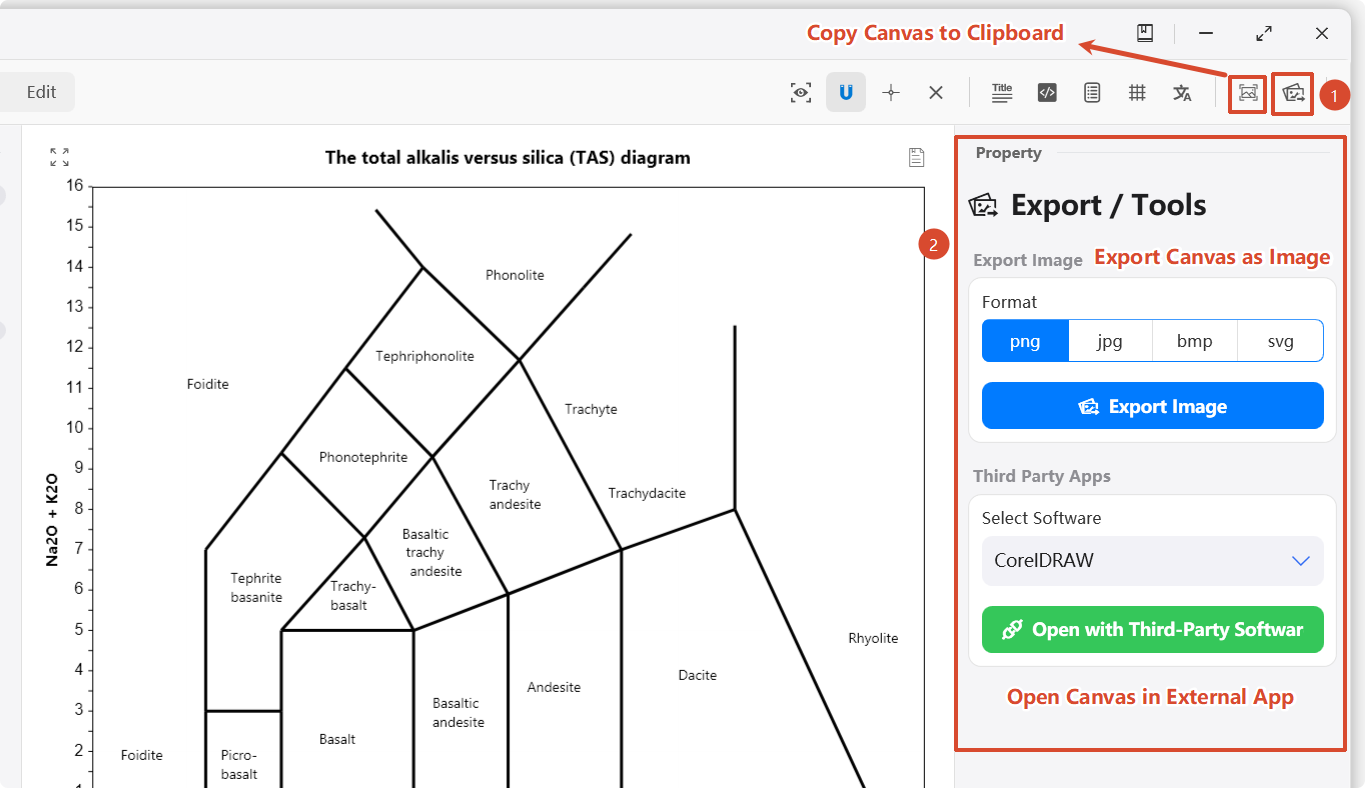
Additional Notes
Diagram templates themselves support multilingual switching, meaning: one diagram can be switched to multiple language versions to meet internationalization needs.
For example: diagrams for domestic Chinese journals need to use the Chinese version, while publications in English SCI/IE journals need the English version. You can switch to the corresponding language version of the diagram by clicking the diagram language button in the upper right corner of the diagram toolbar.
