Geothermobarometer
In early versions, this module was abbreviated as GTM. It was later renamed to geothermometer, and now its official name is: geothermobarometer.
Early versions included geothermometer calculations for minerals such as zircon, sphalerite, quartz, xenotime, chlorite, and biotite. The new version of the geothermobarometer is still being updated and adapted, and will be synchronized soon.
🌟 Features
The geothermobarometer module was designed from the start to mimic the Excel format to reduce the learning curve for users. It is mainly used in two forms:
- Built-in Cloud Templates: By default, built-in cloud templates cannot be modified by users and are maintained and updated by the official team. Without updating the software, users can obtain more of the latest geothermobarometer templates when connected to the network. Researchers can search and select templates suitable for themselves, and fill in data and perform calculations according to the guide. This approach is more direct and faster, requiring no programming knowledge.
- Standalone Window: Researchers can open a standalone form through the menu bar, File -> Open Standalone Spreadsheet. In the standalone form, researchers are allowed to custom program and use different geothermobarometers for combined calculations. For specific thermobarometer functions, see the advanced tutorials section. This approach is more complex and relatively flexible.
Of course, the geothermobarometer module also allows researchers to create their own custom thermobarometers. By packaging into a geothermobarometer package, they can be exported and distributed to other researchers for use.
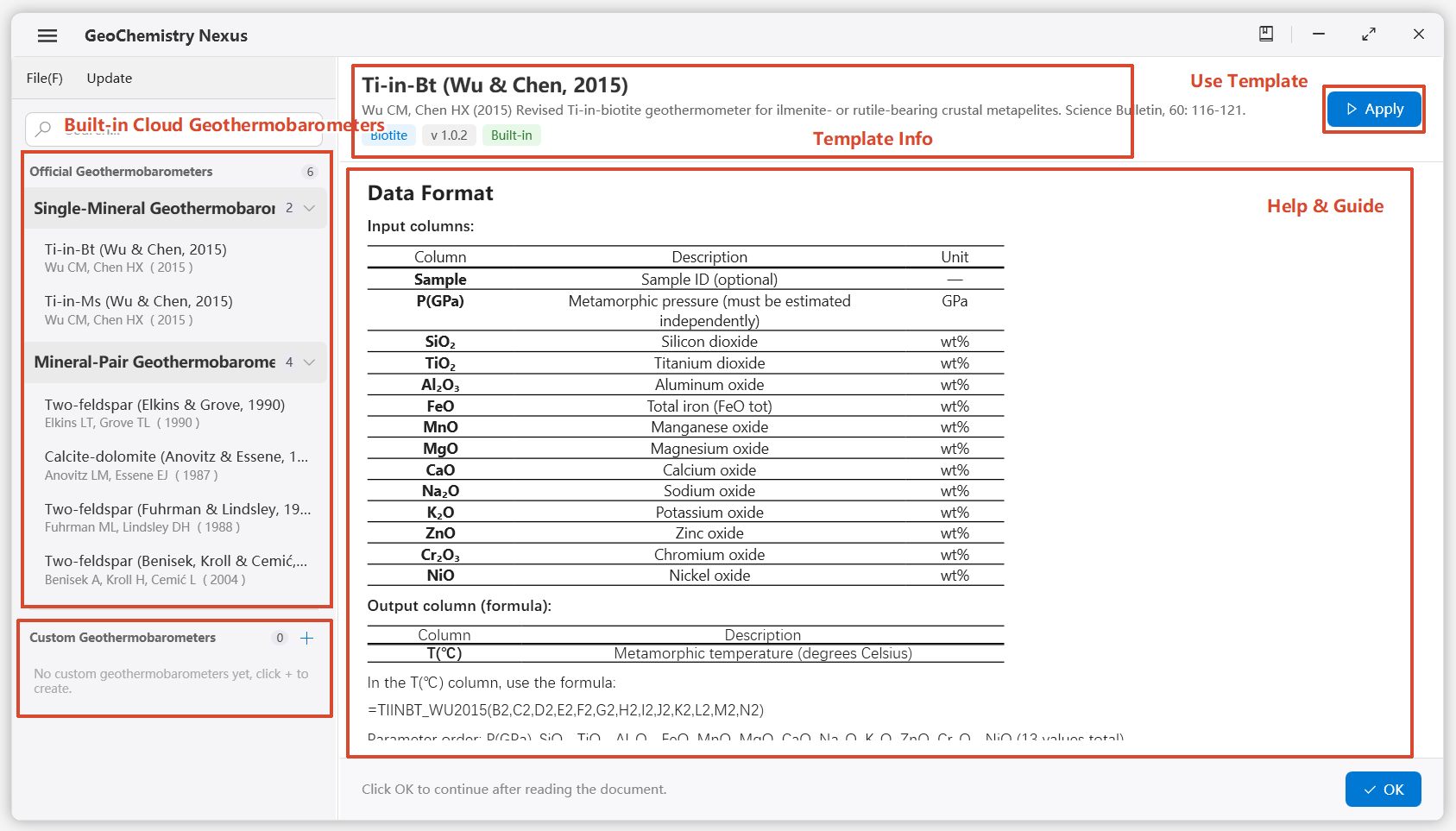
Geothermobarometer Usage Example
Using Built-in Templates
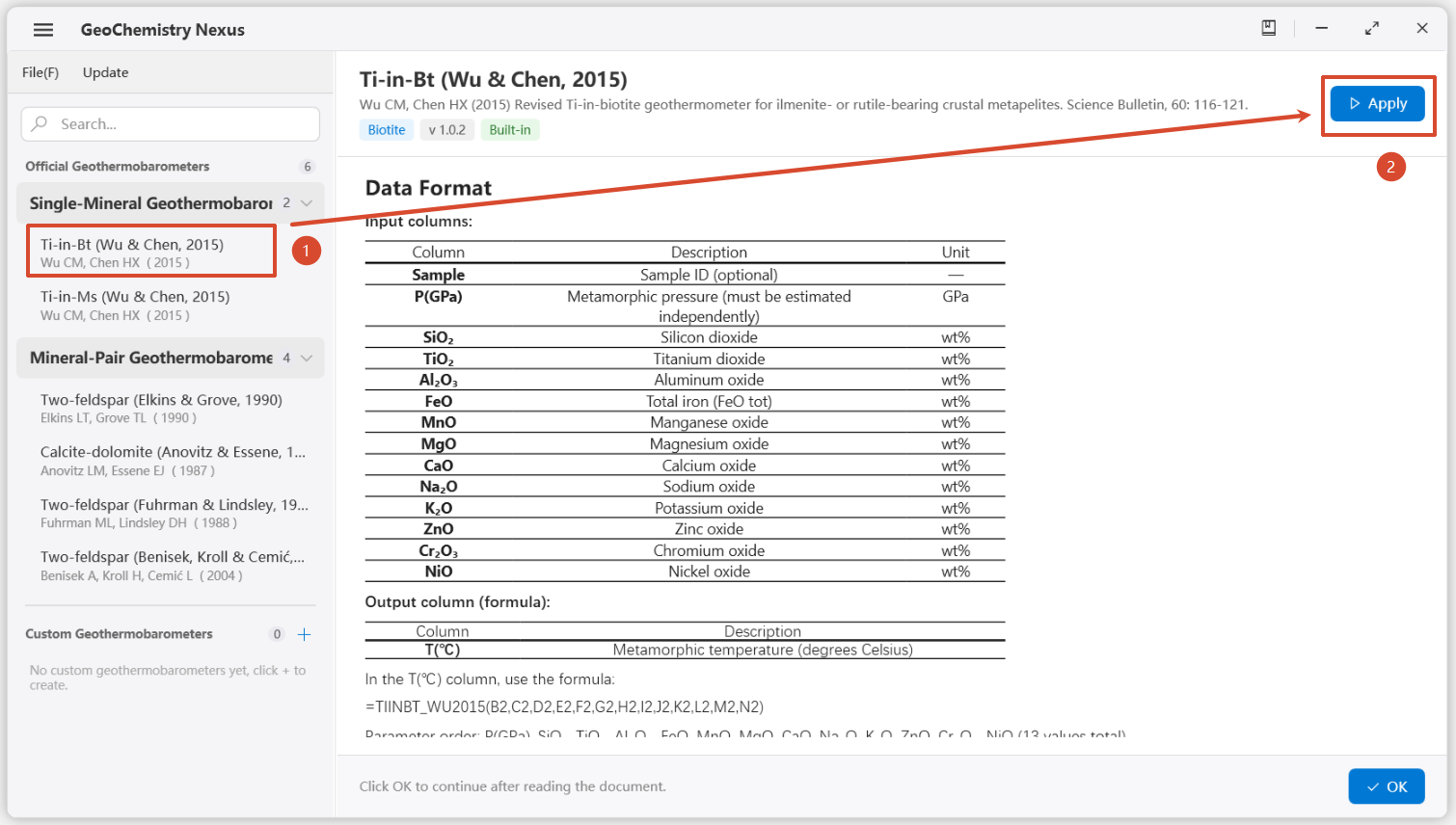
First, within the geothermometer module, select the corresponding calculation template from the menu bar:
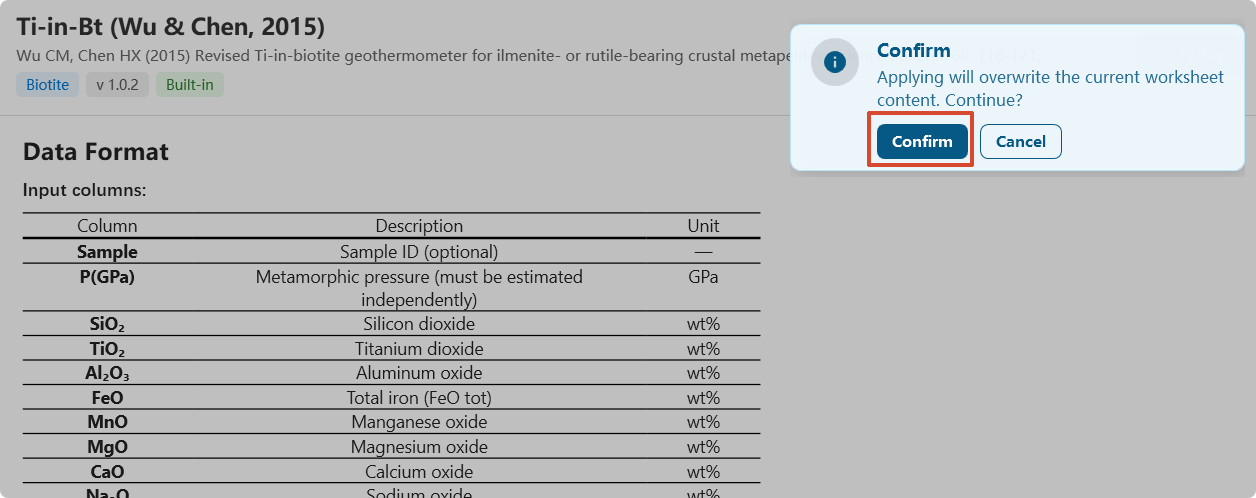
A secondary confirmation sidebar popup will then appear. After confirming, the previous template calculation will be reset and overwritten (if you had previously selected another thermobarometer calculation).
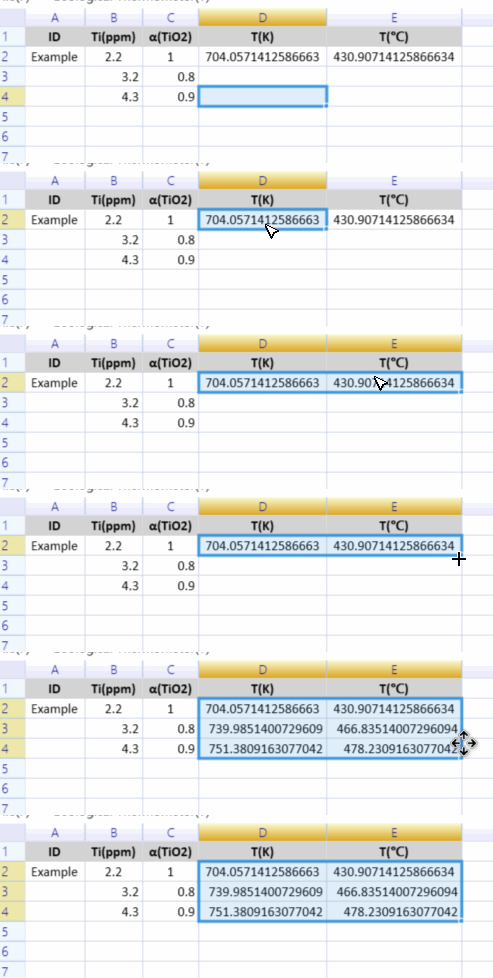
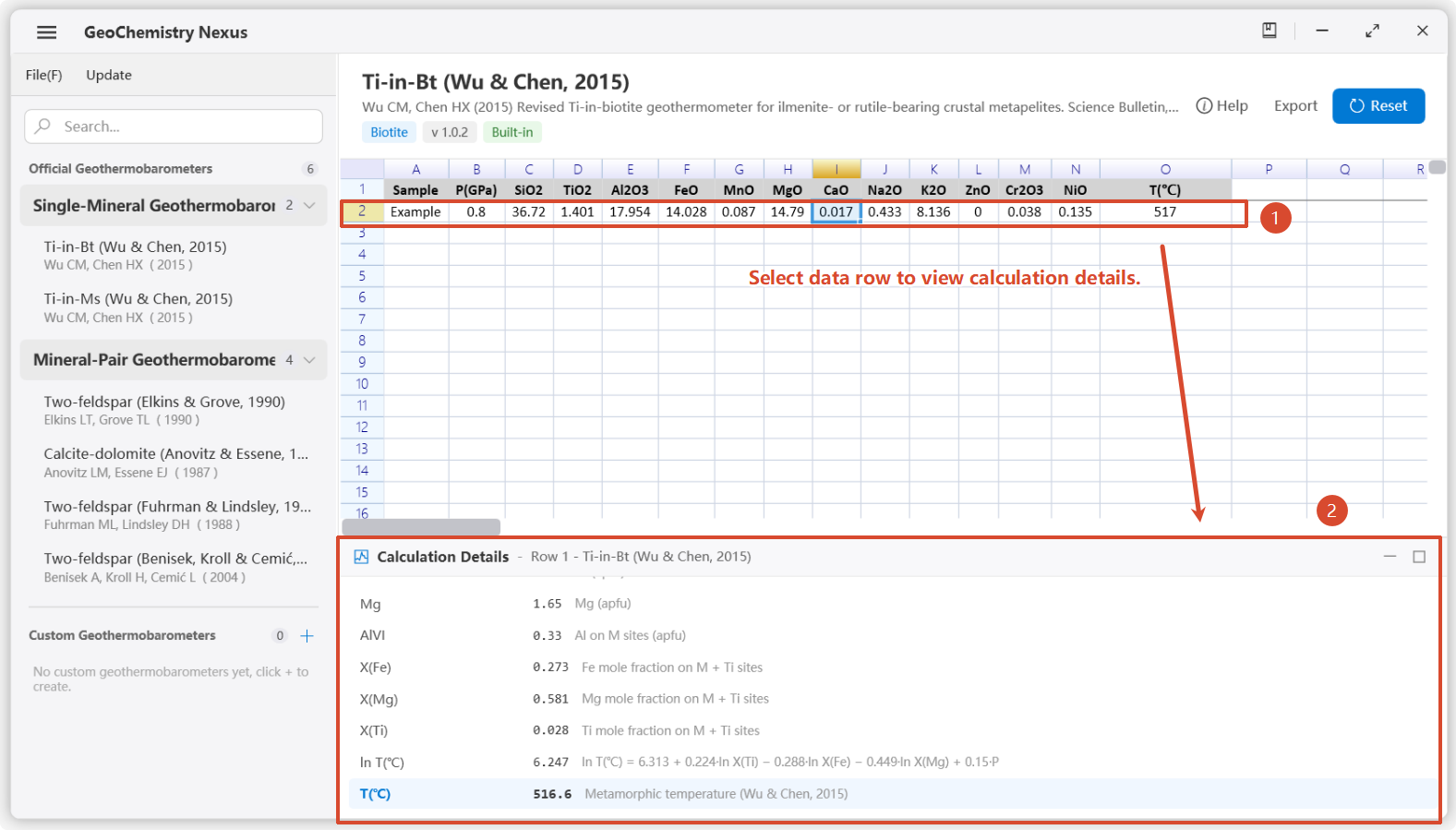
Next, a sample thermometer template will appear. Users only need to fill in the corresponding data, then use the "click and drag" fill handle (similar to Excel) to automatically complete the calculation (as shown in the animation example below).
Of course, the new version thermobarometer supports viewing internal calculation details. Researchers can select the corresponding data row with the mouse and view specific intermediate calculation result details at the bottom.
Standalone Window - Custom Functions
As mentioned earlier, you can open a standalone form through the menu bar, File -> Open Standalone Spreadsheet.
The standalone window spreadsheet is an empty spreadsheet containing some simple toolbar buttons.
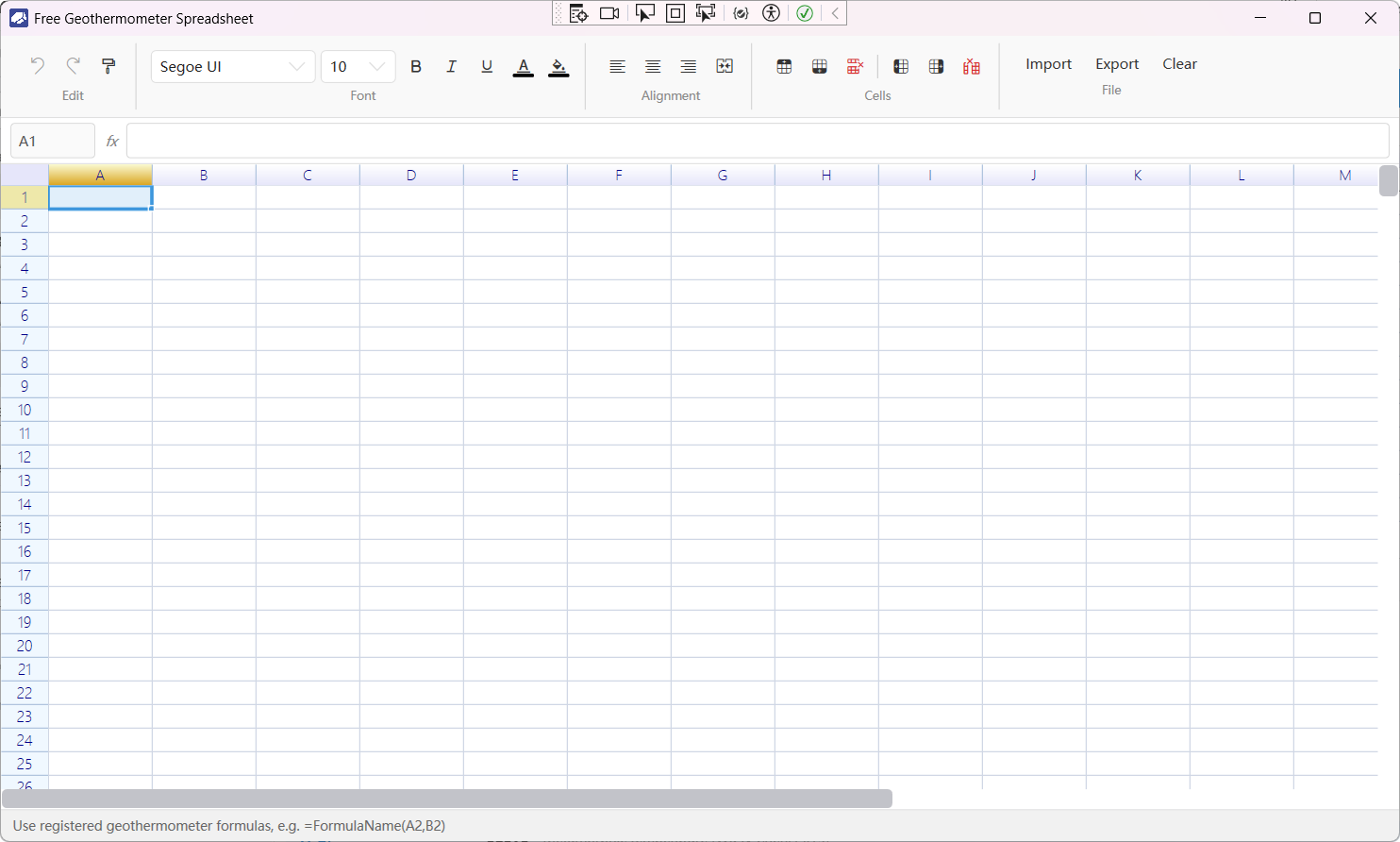
When using the standalone window spreadsheet, it works just like using an Excel spreadsheet in daily life—you can input any values and call functions by entering =FunctionName(parameters).
The difference is that our geothermobarometer calculations are registered as corresponding calculation functions, allowing researchers to more flexibly customize content calculations as needed. Including but not limited to comparing results from multiple thermobarometers. With default templates, it is not possible to calculate multiple thermobarometer results simultaneously (unless you calculate one template at a time). But in the standalone window spreadsheet, you can directly define and use multiple geothermobarometer functions in the same spreadsheet to obtain calculation results.
In the standalone window spreadsheet, it is not possible to view the intermediate calculation process for the corresponding data row.
We sincerely invite contributors to join us in creating a better software experience. 🤝😊